

Your computer suddenly starts acting on its own: red boxes keep popping up in the bottom-right corner — "Your PC is infected", "Licence expired", "Trojan virus detected". The logos look real: McAfee, Windows Defender. Meanwhile the antivirus says nothing and a full scan finds nothing at all. This is not a virus. It is a notification subscription a website obtained inside your own browser, and it takes two minutes to remove.

What it looks like
The scenario is almost always the same. Someone visits a site with free movies, games, mods or cracked software, or simply clicks an ad. The site asks for permission to show notifications, and the person clicks "Allow" without reading — the prompt looks like an ordinary cookie banner.
Then the stream begins. Messages arrive every few minutes, styled to look like system alerts: a red warning triangle, a line about a threat, a button saying "Analyse" or "Activate protection". Sometimes a full page opens with an antivirus vendor's logo and a "Run Quick Scan" button.
Here is the detail almost nobody notices: in small print under each of these boxes it says "via Microsoft Edge". Windows honestly labels where the notification came from. A real antivirus never reports through a browser — it has its own window.
Why it is not a virus
Web Push is a standard browser feature, designed for legitimate uses: your mail app tells you about a new message, your bank about a transaction, a news site about breaking news. A site needs permission only once, after which it can send messages even when its tab has long been closed.
Scammers rely on exactly that. They do not need to install anything, bypass the antivirus or escalate privileges. They only need you to press one button. That is why a full Defender scan finds nothing — the system really is clean. The problem lives in the browser profile, in the list of granted permissions.
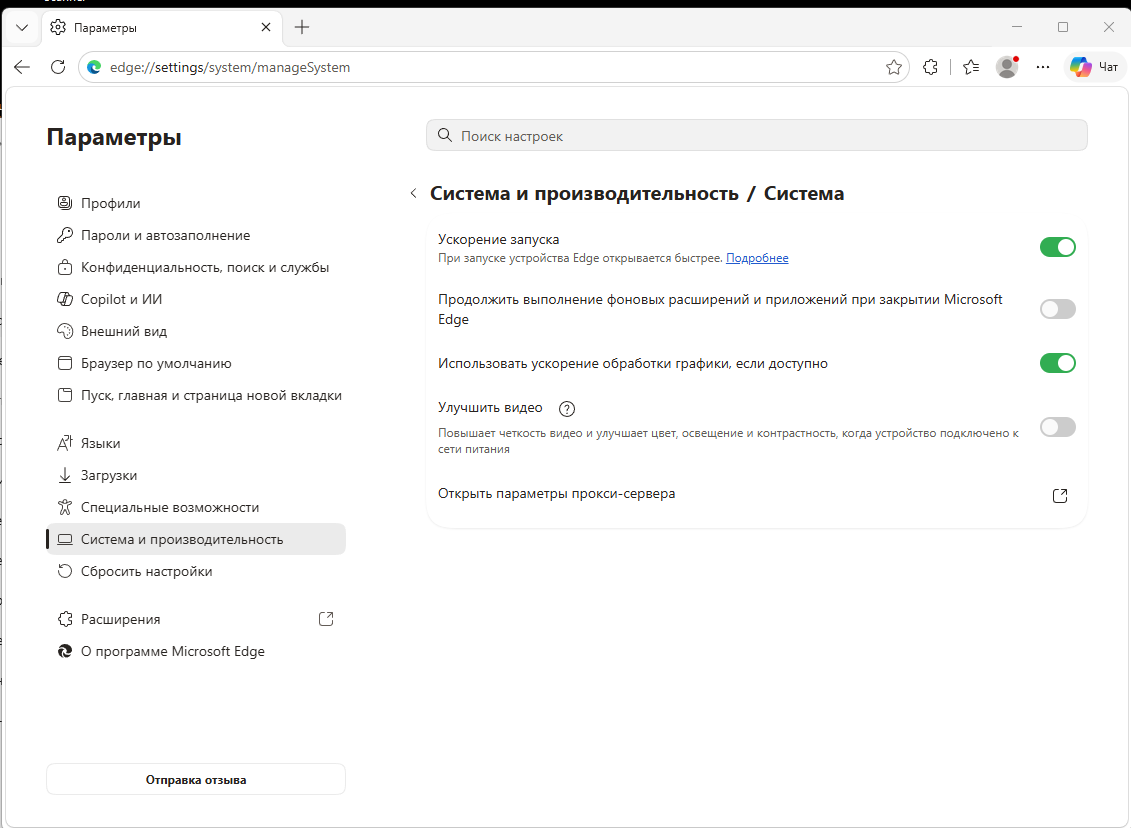
The same explains why the pop-ups appear when the browser is closed. By default Edge keeps background processes running after you close the window so it can start faster and receive push messages. There is no browser on screen, but the channel is alive.
Three signs it is a subscription
| What you see | What is behind it | How to confirm |
|---|---|---|
| "via Microsoft Edge" or "via Google Chrome" under the text | The notification was sent by a website, not by software on your PC | Windows Settings → System → Notifications: the list shows the browser, not an antivirus |
| The sender is a meaningless domain | A throwaway scam domain imitating a vendor | The source is visible in the pop-up, something like 9e4oeocc…shield.co.in — nothing to do with the real McAfee |
| The antivirus is silent while "threats" keep coming | There is nothing in the system to find | A full Microsoft Defender scan completes with no detections |
What not to do
Do not click anything inside those windows — not "Analyse", not "Activate protection", not "Run Quick Scan". That click is where the real trouble starts. Three things usually follow: you are offered an "antivirus" installer that is in fact adware or ransomware; you are taken to a subscription payment page asking for card details; or you are shown a "technical support" phone number where an operator asks you to install remote-access software and connects to your machine.
As long as the notifications merely sit on the screen, they are harmless. Only the click is dangerous.
How to remove it in two minutes
1. Silence the stream first
Press Win + N and turn on "Do not disturb", or open Windows Settings → System → Notifications and switch the browser off. The browser keeps working normally.
2. Revoke the permission
In Edge, paste this into the address bar:
edge://settings/content/notificationsUnder "Allowed to send notifications" you will see a list of sites. Remove everything unfamiliar through the three-dot menu on the right. While you are there, turn on "Quiet notification requests" so sites stop asking with pop-ups.
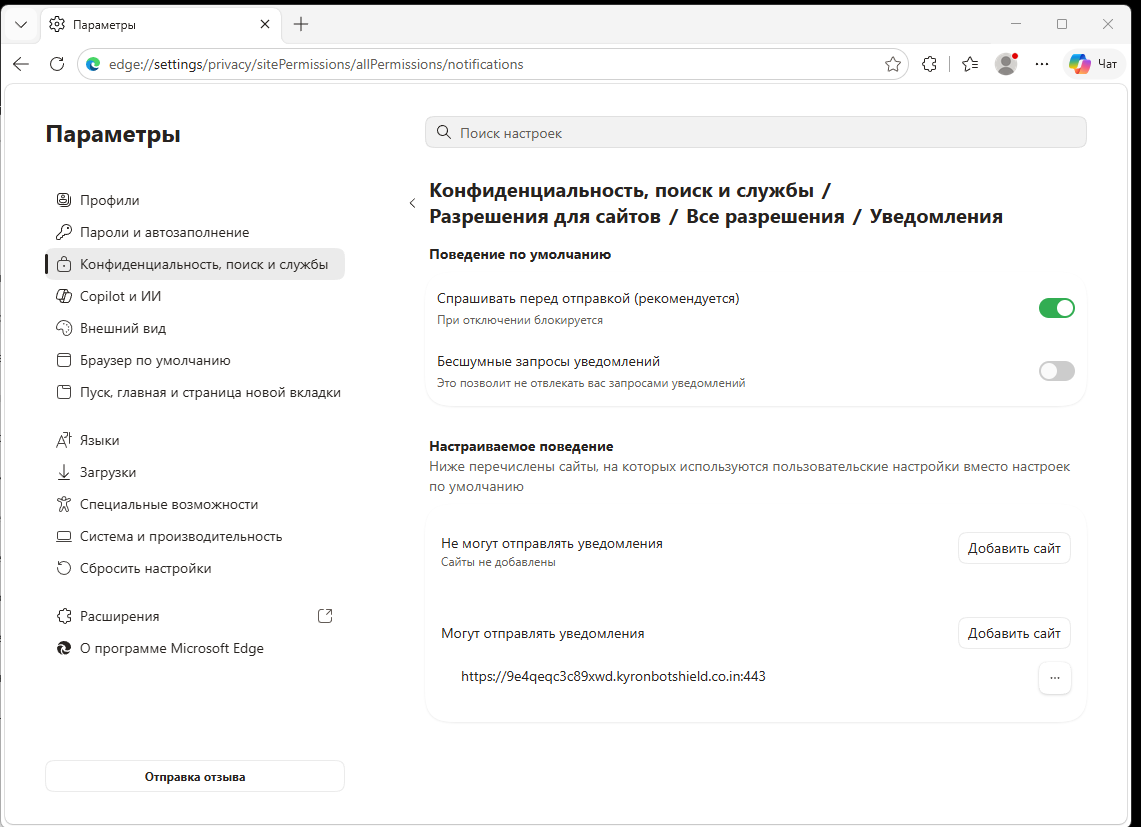
In Chrome the path is the same: chrome://settings/content/notifications. If the browser has several profiles, check each one — permissions are stored per profile.
3. Stop the browser running in the background
Open edge://settings/system and turn off "Continue running background extensions and apps when Microsoft Edge is closed". Otherwise the browser keeps processes in memory permanently, even after the cleanup.
4. Verify the stream has stopped
Switch Windows notifications back to normal and watch for an hour. If nothing appears, the case is closed.
This is NOT your case if…
Everything above fixes a push subscription only. In some situations the symptom looks similar but the cause is different, and clearing permissions will not help.
The pop-ups appear although the browser is never launched, or not installed at all. Then it is software on the system: an adware module, a fake "optimiser", a rogue antivirus.
The settings page will not open, or the permission list cannot be edited. Open edge://policy. If it lists policies you never set, and the browser menu now says "Managed by your organisation", something else is running on that machine — or somebody had access to it.
The start page or search engine changed, or unknown extensions appeared. Check edge://extensions and the browser shortcut properties: in the "Target" field, there should be nothing after msedge.exe — no extra switches, no website address.
Those three cases need a proper system check, not two clicks in settings.
What to check afterwards
If children use the browser, or you have been visiting questionable sites, it is worth going over the system. Run a full Microsoft Defender scan, review startup items in Task Manager and the list of programs installed over the past month. Anything called "PC Optimizer", "Driver Updater" or "System Care" belongs to the same family — remove it.
How to avoid it next time
The rule is simple: grant notification permission only to sites you genuinely use every day — your mail, your work messenger, your bank. Everything else gets "Block". With "Quiet notification requests" enabled the temptation disappears altogether, because the request no longer jumps into the middle of the screen.
And the one thing worth explaining to the rest of the household: no antivirus ever reports a threat through your browser. If a warning arrives as a browser tab or as a notification labelled "via Edge", it is advertising or fraud — whatever logo it carries.
Frequently asked questions
Why does the antivirus find nothing while "threats" arrive every minute?
Because there really is nothing in the system. The scammers install nothing: they use a standard browser feature that someone once granted permission for. Defender scans files and processes, while the problem sits in the browser profile's permission list — and an antivirus does not look there, nor should it.
Can I just close the pop-up so it stops coming back?
No. Closing it dismisses that one message; the subscription stays and the next one arrives in a few minutes. The only way to stop the stream is to remove the permission in browser settings.
I accidentally clicked a button in one of those windows. What now?
If a page simply opened and you closed it, nothing happened — merely viewing a page does not infect anything. Be concerned if something downloaded and you ran it, if you entered card details, or if you installed software at the request of a "support operator". In the first case run a full system scan; in the second call your bank and block the card immediately; in the third have the machine checked and change your passwords.
Would reinstalling the browser fix it?
It would, but it is unnecessary. Permissions live in the profile, so removing them is enough. A reinstall only makes sense if the browser still behaves oddly after the cleanup — settings will not open, the search engine changed, or unfamiliar policies appeared.
Can the same thing happen on a phone?
Yes, the mechanism is identical. In mobile Chrome the permissions are under Settings → Site settings → Notifications; in Safari on iPhone, under Settings → Safari. The principle is the same: find the unfamiliar site in the allowed list and remove it.
When to call a technician
If notifications come back after you remove the permissions, if the settings page will not open, if edge://policy shows policies you did not create, or if unknown programs turned up in startup — the problem has moved beyond the browser. At IT Master we handle these cases daily: we check the system, remove adware and its leftovers, then configure the browser so it does not happen again. We work in Odesa and remotely. Technical support — or simply get in touch and we will tell you what to do next.